Get the right insight to the right person—before they ask
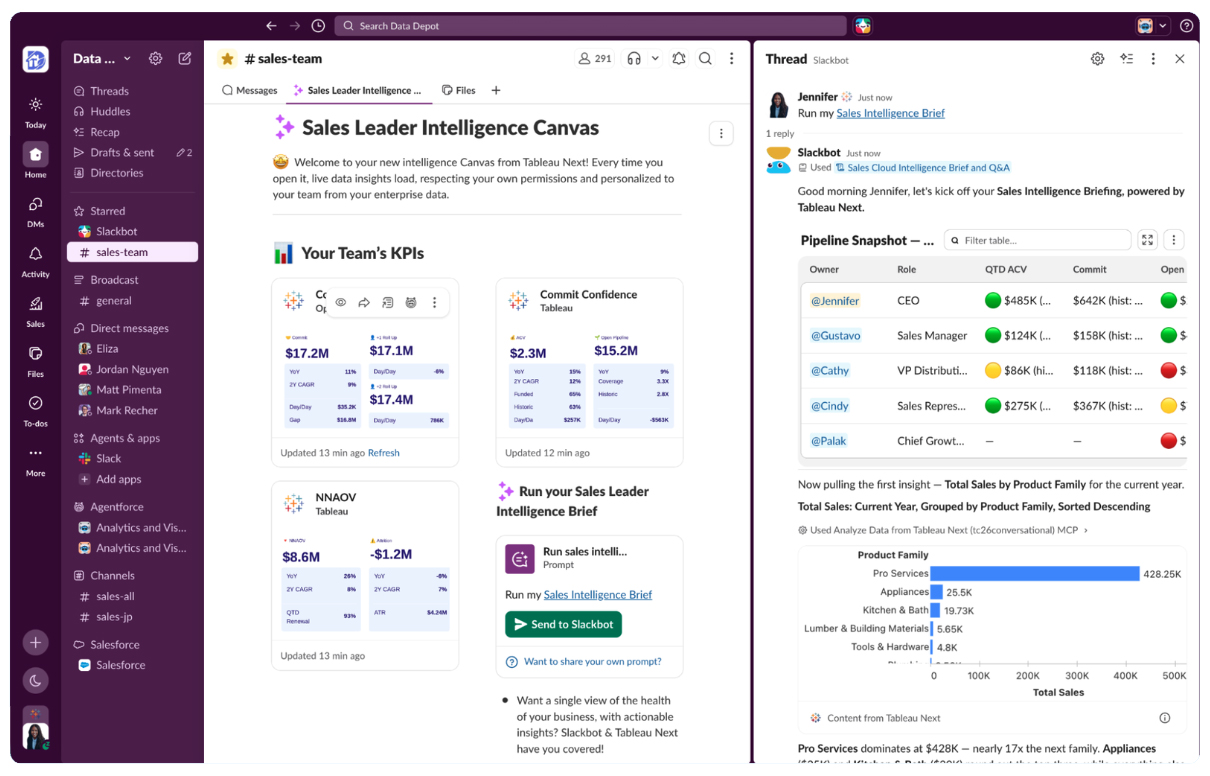
Picture this: It’s 8:25 a.m., your morning coffee is brewing, and you have a massive forecast review meeting in five minutes. Instead of scrambling across tabs, sifting through many dashboards, and filtering through a mountain of noise, a clean text brief pops up directly inside Slack. It outlines your team’s current pipeline health, flags critical deal risks, and shows you the Salesforce opportunities that need your attention today.
Business users do not need more data. They need the right insight, at the right moment, right where they work.
Tableau Next and Slackbot make that possible. Tableau grounds Slackbot in your business knowledge, so you can ask questions and get trusted insights, unlocking conversational analytics right where you work. But it’s not only about questions you ask—you can easily build custom skills to deliver repeatable, automated intelligence briefings. It puts data at the heart of every conversation, right where decisions are made.
The result? Faster, more confident decisions without disrupting your flow of work. Best of all, you can build your first custom briefing in about five minutes.
How to set up an intelligence brief in Slack in less than 5 minutes
Step 1: Connect Slackbot to Tableau Next MCP
The first step is connecting Slackbot to the Tableau Next MCP. From there, Slackbot will have access to your AI-ready semantic models that house your business knowledge—including metrics, specific terms, and preferences. Think of this connection as establishing a shared language; the context from a semantic model helps Slackbot respond accurately and consistently, ensuring that when you use a term like “pipeline,” the agent understands your verified business definition and doesn’t make a random guess.
If you haven’t done this step yet, just open Slackbot and ask it to connect to Tableau Next—it will walk you through the setup.
Step 2: Ask Slackbot what your data can do
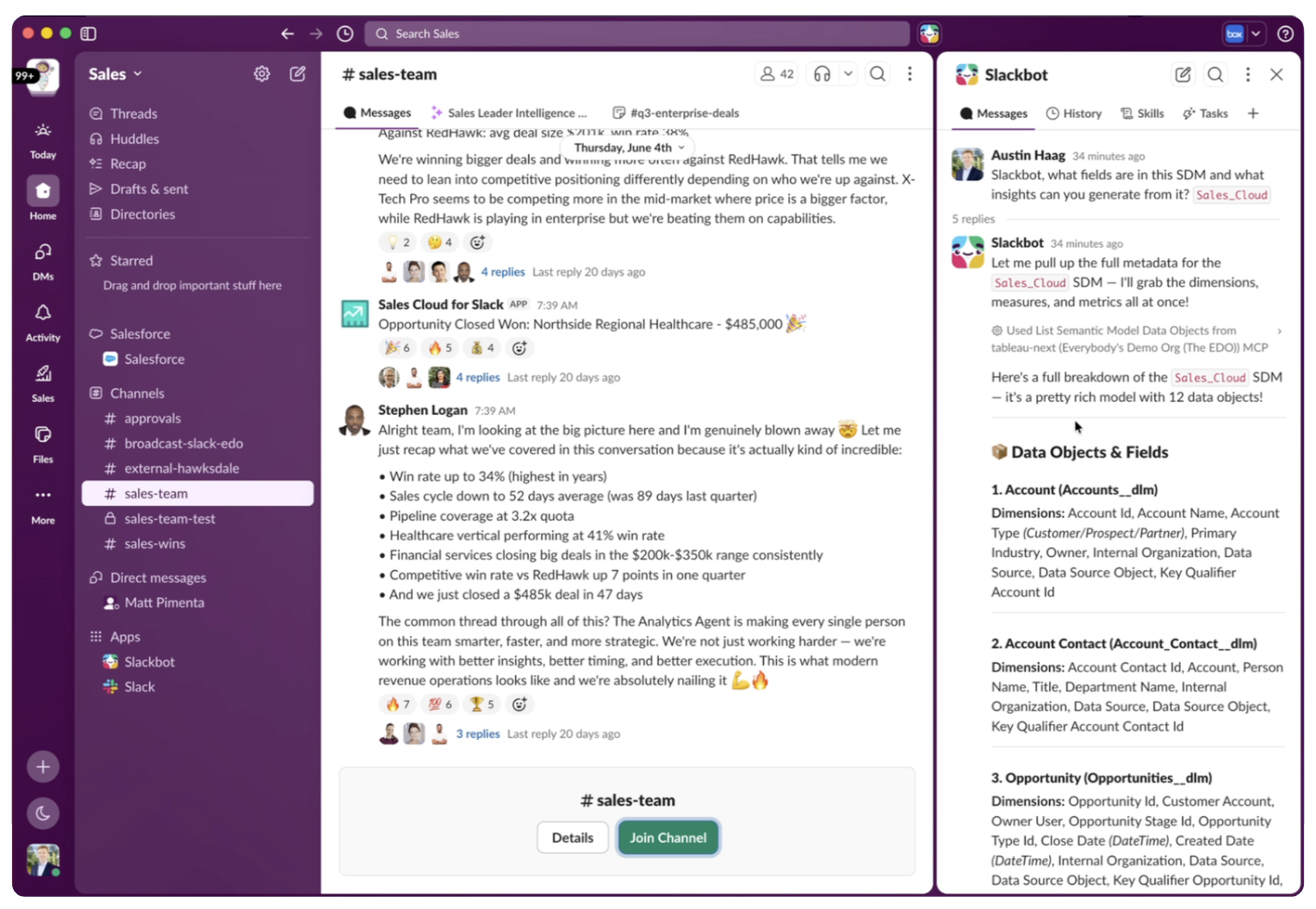
Before building anything, ask Slackbot to explore the shape of your data. Have Slackbot search for available semantic models or tell it the name of a specific semantic model, and ask what fields are available and what insights it can surface from them.
- Example prompt: “What fields are available in the [semantic model name] semantic model, and what insights could you generate from those fields?”
Slackbot will use the Tableau Next MCP tools to scan your dimensions and data objects, then suggest a clear list of ready-to-go insights it can generate.
Step 3: Run a test insight
Pick one of the recommended insights from Step 2 and ask Slackbot to run a live test.
- Example prompt: “Run the pipeline and revenue analysis by stage.”
Slackbot will query Tableau Next and return a plain-language summary alongside an accompanying visual with your key takeaways. Read it over like you are the audience. If it looks helpful and hits the mark, you are ready to build the skill.
Step 4: Ask Slackbot to build the skill
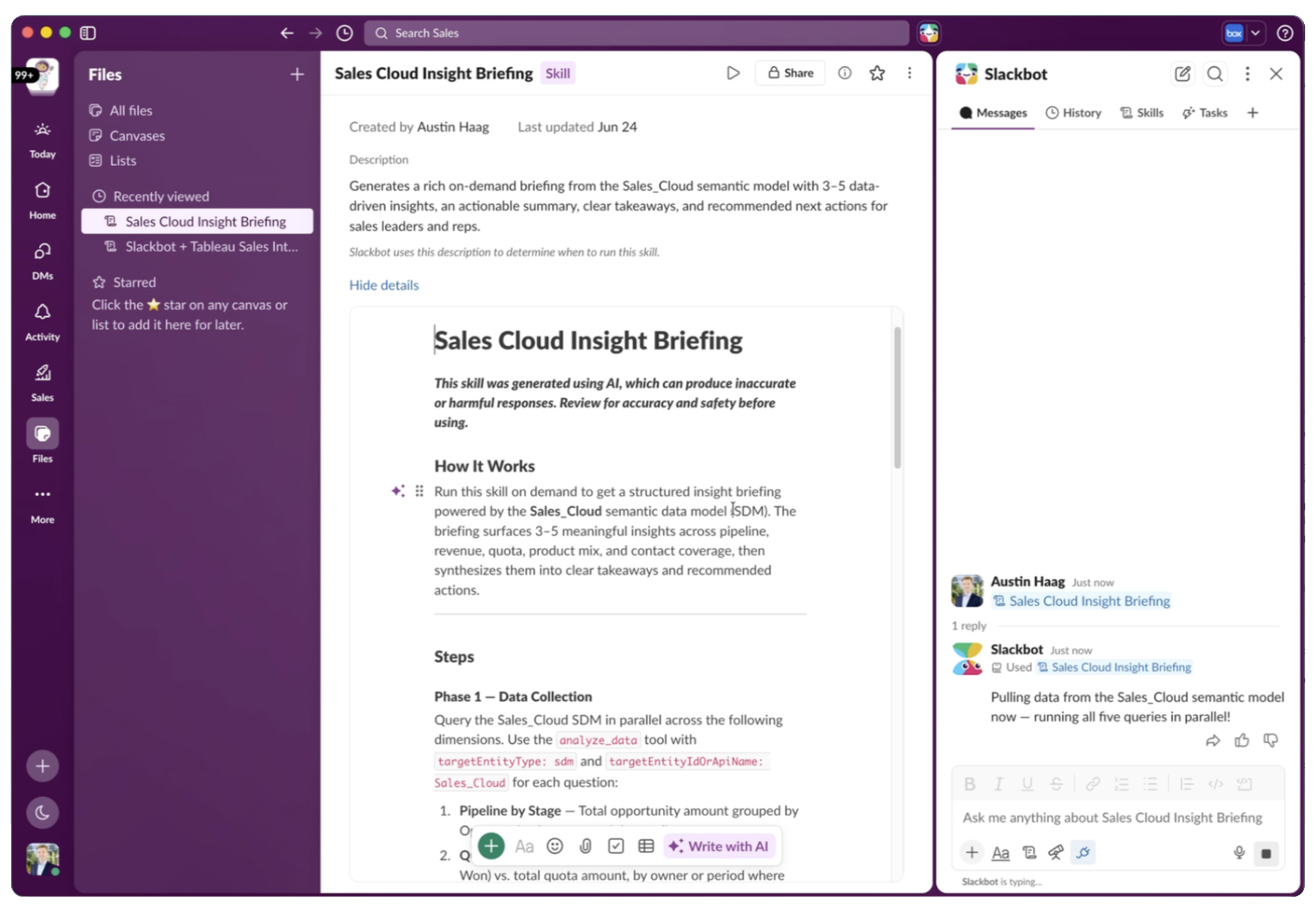
Now, tell Slackbot what you want in your briefing—which insights to include, what format you want, and how it should be delivered. You don’t need to write instructions or manually configure a single setting.
- Example prompt: “Create a new skill for an intelligence briefing that includes pipeline analysis by stage and deal risk signals. I should be able to run it on demand, and it should deliver detailed insights with an actionable summary and clear takeaways.”
Slackbot will draft the skill and package it up so you can launch it with a single click. It knows exactly which semantic model to query and formats the output as a natural-language briefing, not a massive data dump.
Step 5: Format records as clickable links
Here is a high-value refinement to make your brief instantly actionable: Ask Slackbot to format any Salesforce records mentioned as live links. One click inside Slack will take your team straight to the live opportunity, account, or case natively in Slack.
- Example prompt: “Update the skill to format all opportunities mentioned in the brief as Salesforce record links.”
Slackbot will update the skill to pull live URLs automatically every single time the brief runs moving forward. You only need to set this up once.
Step 6: Run it, iterate, and scale
Run your new skill and look at it with fresh eyes. Want to tweak something? Just keep refining—you can make adjustments to the skill yourself, or tell Slackbot what you want to change in plain English.
For example:
- “Add a section on deals that have gone quiet for more than 14 days.”
- “Include Slack activity signals alongside the pipeline data.”
- “Format the summary as three bullet takeaways, not paragraphs.”
No code, no manual configuration—just a conversation. Once it is dialed in, share it with your leaders so the whole team can start leveraging automated insights.
Step 7: Ask follow-up questions and take action from within Slack
The ultimate value of automated briefs is closing the loop between data discovery and execution. Once your briefing surfaces a key trend or account risk, you don’t need to leave Slack to dive deeper or address it.
With the connection to Tableau Next MCP, you can directly ask follow-up questions and continue your analysis in Slack.
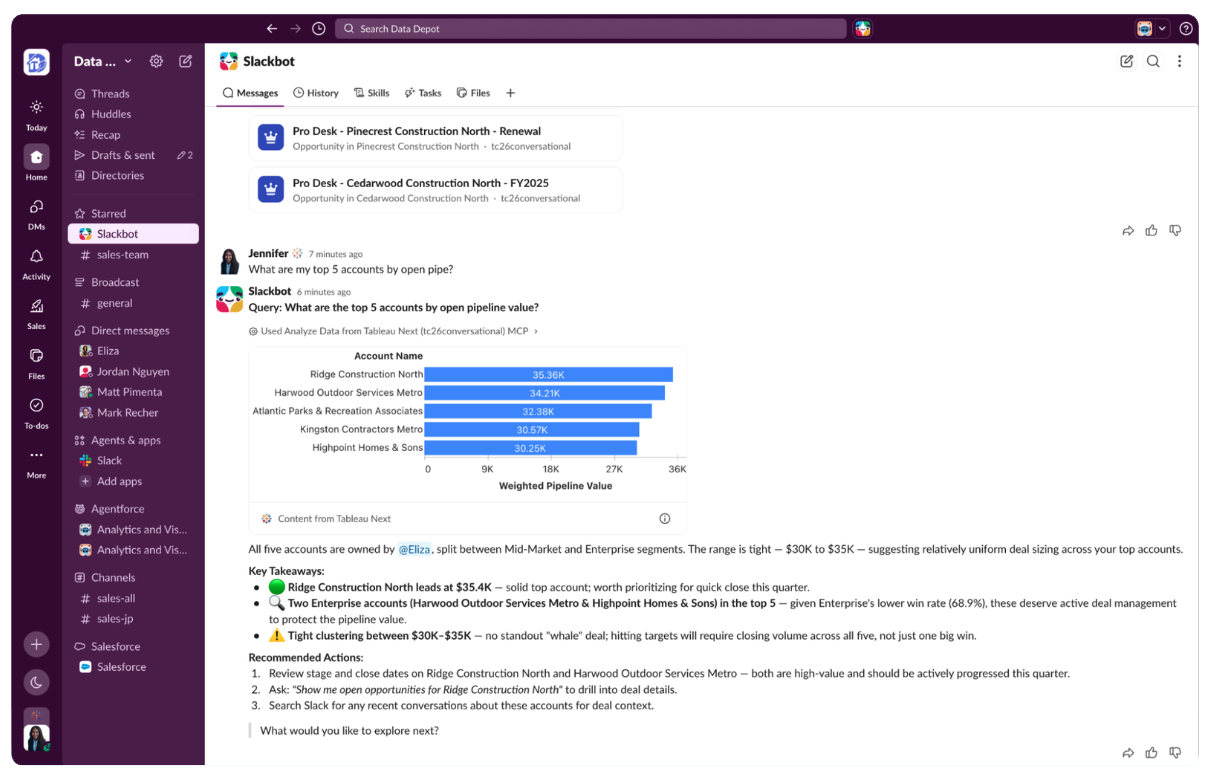
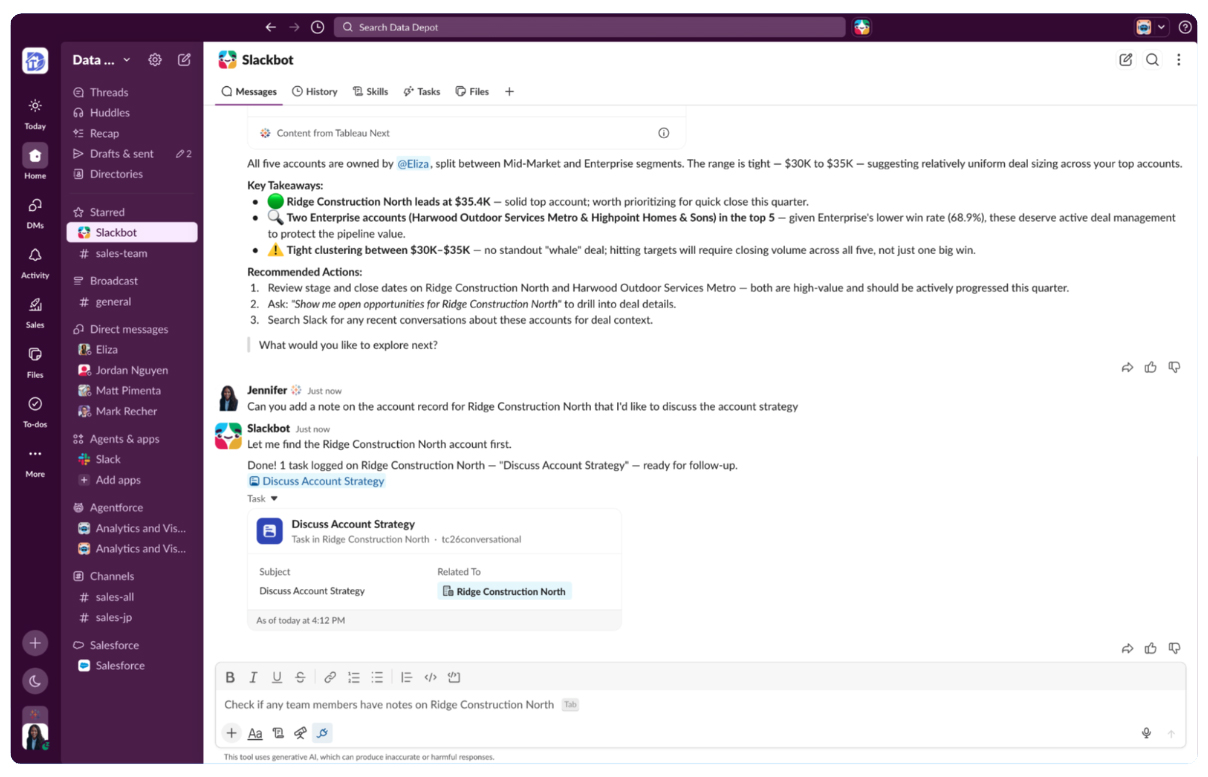
And because Slackbot is directly connected to your Salesforce workflow, you can talk to Slackbot to execute CRM updates instantly.
- Example prompt: “Slackbot, update the ACME opportunity close date to next Friday and log a note saying we are waiting on legal review.”
You can also ask Slackbot to log a follow-up task, add an operational note to a core account, or compile the morning’s brief into a collaborative canvas for your regional team. By removing the friction between finding an insight and updating your system of record, your team can fix pipeline risks the moment they show up.
How we are using Slackbot conversational analytics at Salesforce
Our Salesforce team rolled out the intelligence briefing via Slackbot skills and Tableau Next across our own Sales organization. This has empowered 3,500 sales leaders with proactive intelligence briefs and conversational analytics.
“I’m a believer in the power of notifications. We tend to focus on what’s right in front of us and ignore the rest. A brief that shines a light on the parts of your business you’re not thinking about—like pipeline that’s been sitting untouched for 30 days—forces you to take action. I call it intelligent prioritization: it tells you where to spend your time.”
—Nick Agrawal, AVP, Analytics Sales
We are customer zero
Learn how Salesforce empowers 3,500 sales leaders with conversational, agentic analytics with Slackbot, powered by Tableau Next.
Super user mode: Level up your intelligence brief
Once version one of your briefing is working smoothly, here are a few advanced ways to level up your skills based on our own internal rollouts:
- Add a personalization layer. Ask Slackbot to link your briefing skill to a user-owned, free-form “Preferences Canvas” (Slackbot can help create the canvas, too). This lets individual users customize their own formatting or output preferences in plain language without breaking or fracturing the master skill logic.
- Set clear guardrails. To keep things from turning into a wild west of conflicting numbers, pair that canvas with a simple Guardrails doc. It clearly maps out what is locked versus what is flexible, e.g. what stays locked: your core semantic model, company security rules, and fiscal boundaries (this keeps the data trusted). What users can customize: the time ranges they care about, their local patch scope, and how they want the final text formatted.
- Pro tip: Keep one job per skill. Keep your setup clean and maintainable. Let your briefing skill focus entirely on creating the brief, and use a separate scheduler skill to handle your automated delivery. When each skill does one thing, they are much easier to test, maintain, and share independently.
The gap between data and a great decision isn’t a data problem—it’s an insights and delivery problem. Custom skills in Slackbot powered by Tableau Next close that gap completely.
Ready to build your first skill? Open Slackbot, describe the custom briefing you want, and get a live preview in minutes.
Learn more
See it in action—join our webinar to learn three ways Tableau delivers trusted conversational analytics, including in Slack.
Tableau Next & Slack demo playlist
See what you, Tableau Next, and Slackbot can do together.